This is a tutorial on reporting emails and shared files in Outlook that you suspect may be spam, a phishing attempt, some other violations or criminal activity. Anything you report will be reviewed by the RTC Service Desk and security team to access the danger.
If something is particularly concerning, please contact the RTC Service Desk. We can take steps to help prevent others from falling for phishing attacks.
I clicked/opened something! What do I do?
If you clicked on any links in the email or opened any attachments included in the email:
- Immediately visit RTC Self-Service Password Reset, log in, and change your password.
- After changing your password, immediately contact the HelpDesk by calling (425)235-2500 or emailing servicedesk@rtc.edu so IT can investigate and take actions to protect RTC’s systems and students’ information.
Tutorial: Reporting on the Outlook Desktop App
Step 1
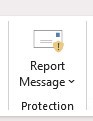
Locate and click the ‘Report Message’ button. The appearance can vary depending on
your version of Outlook and settings, but generally it is on the ‘Home’ navigation
bar, on the far right.
Step 2
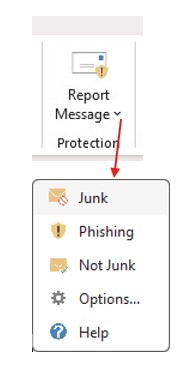
From the drop-down menu, choose the desired classification.
- If the email is spam, choose ‘Junk’
- If the email is a phishing email or is suspicious, choose ‘Phishing’
Step 3
If you see a confirmation popup, click the ‘Report’ button to confirm. It may just
show a small message above the email (below the sender information) confirming it
was sent.


Step 4
You will shortly receive a Help Desk closed ticket email acknowledging the report.
If the email you reported was part of the IT Security Training Phishing emails, the
closed ticket email will notify you that you successfully caught it.
Tutorial: Reporting on the Outlook Web Interface
Step 1
There are two areas to reach the Reporting tools.
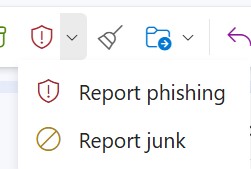
Option 1: On the ‘Home’ navigation bar, there is a red shield icon.

- Click the red shield, and a drop down menu will offer the options ‘Report phishing’ and ‘Report junk.’ Choose which type of email you suspect it to be. Clicking either will bring up a popup message defining what phishing or junk is (you can click the box to not have these come up anymore), and then after you click ‘Okay,’ there will be a confirmation popup.
Option 2: In the navigation bar on the suspicious email itself, you can click the
three dots on the far right (the lower set by the blue square Apps icon).

- In the drop-down menu, find ‘Report,’ which opens this smaller menu. Choose which type of email you suspect it to be. Clicking either will bring up a popup message defining what phishing or junk is (you can click the box to not have these come up anymore), and then after you click ‘Okay,’ there will be a confirmation popup.

Questions?
Please contact the RTC Service Desk.